Problem : Apache Maven install “'mvn' not recognized as an internal or external command”
Solution : Here I am using Windows 8.1 and Java 8.
1. Check out Maven in your Apache Tomcat Directory. If Maven folder is not there then download it first from this site : https://maven.apache.org/download.cgi
Download apache-maven-3.3.3-bin.zip
Unzip it and paste "apache-maven-3.3.3" inside "apache-tomcat-7.0.54" as I'm using Apache 7.
2. Create a user variables like this [ M2 = %M2_HOME% ]
3. Create a user variables like this [M2_HOME = F:\apache-tomcat-7.0.54\apache-maven-3.3.3\bin]
(as my apache tomcat is in F:\ dive your may be in C:\ drive)
4. Edit the Path or PATH to [What ever is already in here +];%M2%
5. Dependency in pom.xml
6. Now open Command Prompt go-to "F:\apache-tomcat-7.0.54\apache-maven-3.3.3\bin"
Execute following command
mvn install:install-file -Dfile=C:\oraclexe\app\oracle\product\10.2.0\server\jdbc\lib\ojdbc14_g.jar -DgroupId=com.oracle -DartifactId=ojdbc14_g -Dversion=10.2.0 -Dpackaging=jar
Please Comment Thanks to us if this topic is helpful :)
Problem : Cannot complete the install because one or more required items could not be found.
Software being installed: m2e connector for the Maven Dependency Plugin 0.0.4.201410161303 (com.ianbrandt.tools.m2e.mdp.feature.feature.group 0.0.4.201410161303)
Missing requirement: m2e connector for Maven Dependency Plugin 0.0.4.201410161303 (com.ianbrandt.tools.m2e.mdp.core 0.0.4.201410161303) requires 'bundle org.eclipse.m2e.jdt 1.4.0' but it could not be found
Cannot satisfy dependency:
From: m2e connector for the Maven Dependency Plugin 0.0.4.201410161303 (com.ianbrandt.tools.m2e.mdp.feature.feature.group 0.0.4.201410161303)
To: com.ianbrandt.tools.m2e.mdp.core [0.0.4.201410161303]
Solution :
1. Start Eclipse IDE > Help > Install New Software
2. Paste site: http://download.eclipse.org/releases/indigo/ in Work with Textbox
3. Once the list loads, under "General Purpose Tools", check "m2e - Maven Integration for Eclipse ".
Continue Installation with Next
Click Finish
Wait For Completion of Installation.
NOTE : Sometimes it still shows error while installation with Eclipse Indigo
so if you are not still able to install it then download "eclipse-jee-luna-SR2-win32-x86_64"
It already comes with m2e Maven dependency plugin.
Please Comment Thanks to us if this topic is helpful :)
- a:link - a normal, unvisited link
- a:visited - a link the user has visited
- a:hover - a link when the user mouses over it
- a:active - a link the moment it is clicked
 /* unvisited link */
 a:link {
   color: #FF0000;
 }
 /* visited link */
 a:visited {
   color: #00FF00;
 }
 /* mouse over link */
 a:hover {
   color: #FF00FF;
 }
 /* selected link */
 a:active {
   color: #0000FF;
 }
Text Decoration
The text-decoration property is mostly used to remove underlines from links:
 a:link {
   text-decoration: none;
 }
 a:visited {
   text-decoration: none;
 }
 a:hover {
   text-decoration: underline;
 }
 a:active {
   text-decoration: underline;
 }
Background Color
The background-color property specifies the background color for links:
 a:link {
   background-color: #B2FF99;
 }
 a:visited {
   background-color: #FFFF85;
 }
 a:hover {
   background-color: #FF704D;
 }
 a:active {
   background-color: #FF704D;
 }
Below, I have given different ways to open control panel in Windows 8 and 8.1.
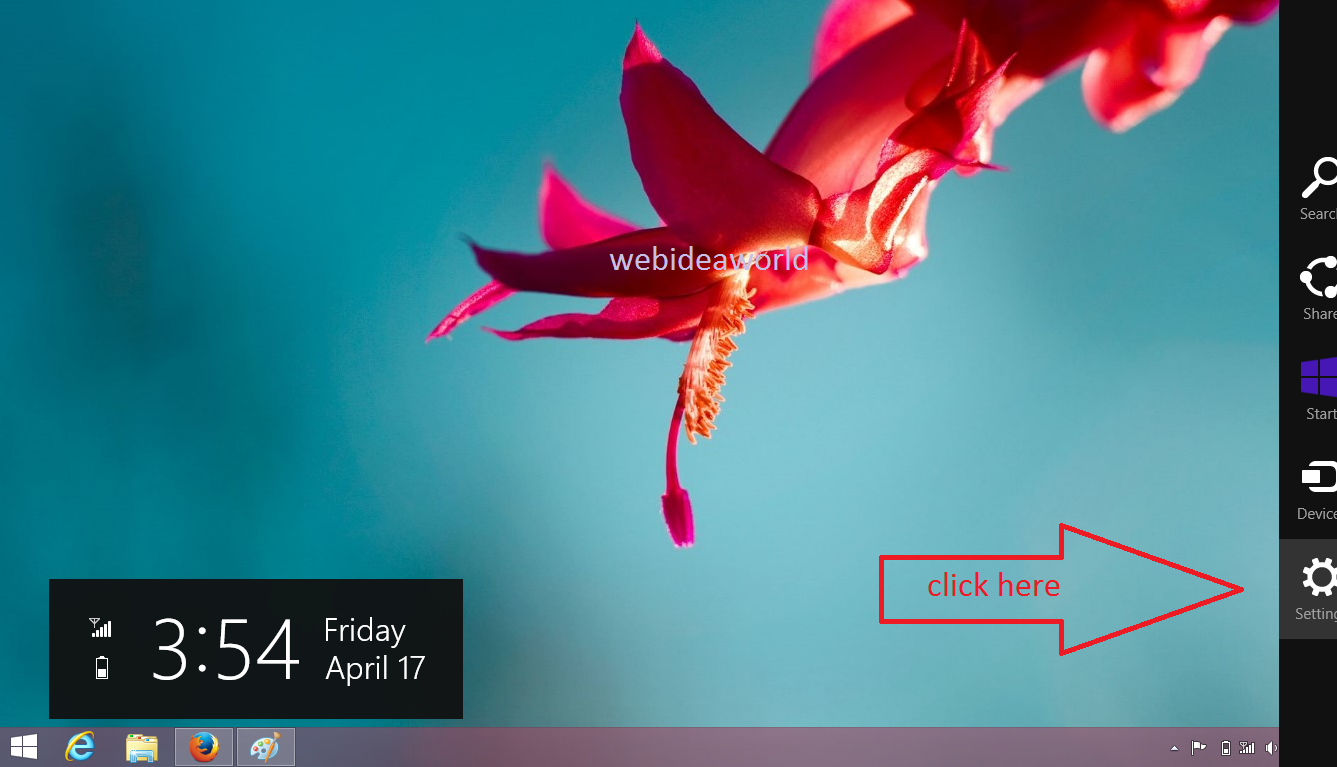
1. Right click on Windows  and click on Control Panel.
2. On your desktop, open the Charms Bar, click on the Settings charm, click on Control Panel.
Or you can directly open Settings charm by pressing Windows + I keys.
3. Open Computer, In the Computer tab, click on Control Panel in the ribbon.
4. Open Computer, click on the first arrow on the left side in the address bar, click on Control Panel in the menu.
By following simple steps you can add Sleep or Hibernate to your PC's Power Option Menu :
1. Open Control Panel > Power Options.
Or you can directly open Power Options by clicking on battery icon.
2. Now click on "Choose what the power buttons do" link given in left sidebar.
3. Then click on "Change settings that are currently unavailable" link given at the top and scroll down to bottom.
4. You'll notice that "Hibernate" or "Sleep" option is unchecked. Enable the option and apply the changes.
5. That's it. Now you can see missing hibernate or sleep option in power menu of Windows 8 as shown in following screenshot:
Float an Image to Left : (use any one)
1. Add a style attribute to the image, and apply the float property:
<img src="image-sample.jpg" alt="image-caption" style="float:left;" />
2. You can add some margins to the image to increase its readability:
<img src="image-sample.jpg" alt="image-caption" style="float:left;margin:0 5px 0 0;" />
3. With CSS float, an element can be pushed to the left, allowing other elements to wrap around it.
 img
{
img
{
float: left;
}
Float an Image to Right : (use any one)
1. Add a style attribute to the image, and apply the float property:
<img src="image-sample.jpg" alt="image-caption" style="float:right;" />
2. You can add some margins to the image to increase its readability:
<img src="image-sample.jpg" alt="image-caption" style="float:right;margin:0 5px 0 0;" />
3. With CSS float, an element can be pushed to the right, allowing other elements to wrap around it.
img
{
float: right;
}
Disclaimer
We shall not be liable for the improper or incomplete transmission of the information contained in this communication nor for any delay in its response or damage to your system. We do not guarantee that the integrity or security of this communication has been maintained or that this communication is free of viruses, interceptions or interferences. Anyone communicating with us by email accepts the risks involved and their consequences. We accept no liability for any damage caused by any virus transmitted by this site.
 5. Dependency in pom.xml
  6. Now open Command Prompt go-to "F:\apache-tomcat-7.0.54\apache-maven-3.3.3\bin"